From install to posted in five steps.
Install once. Connect one project key. Then keep working exactly the way you already do.
Install the extension
Add Shiplogue to Cursor, VS Code, Claude Code or Antigravity. One install per machine, no config file to write.
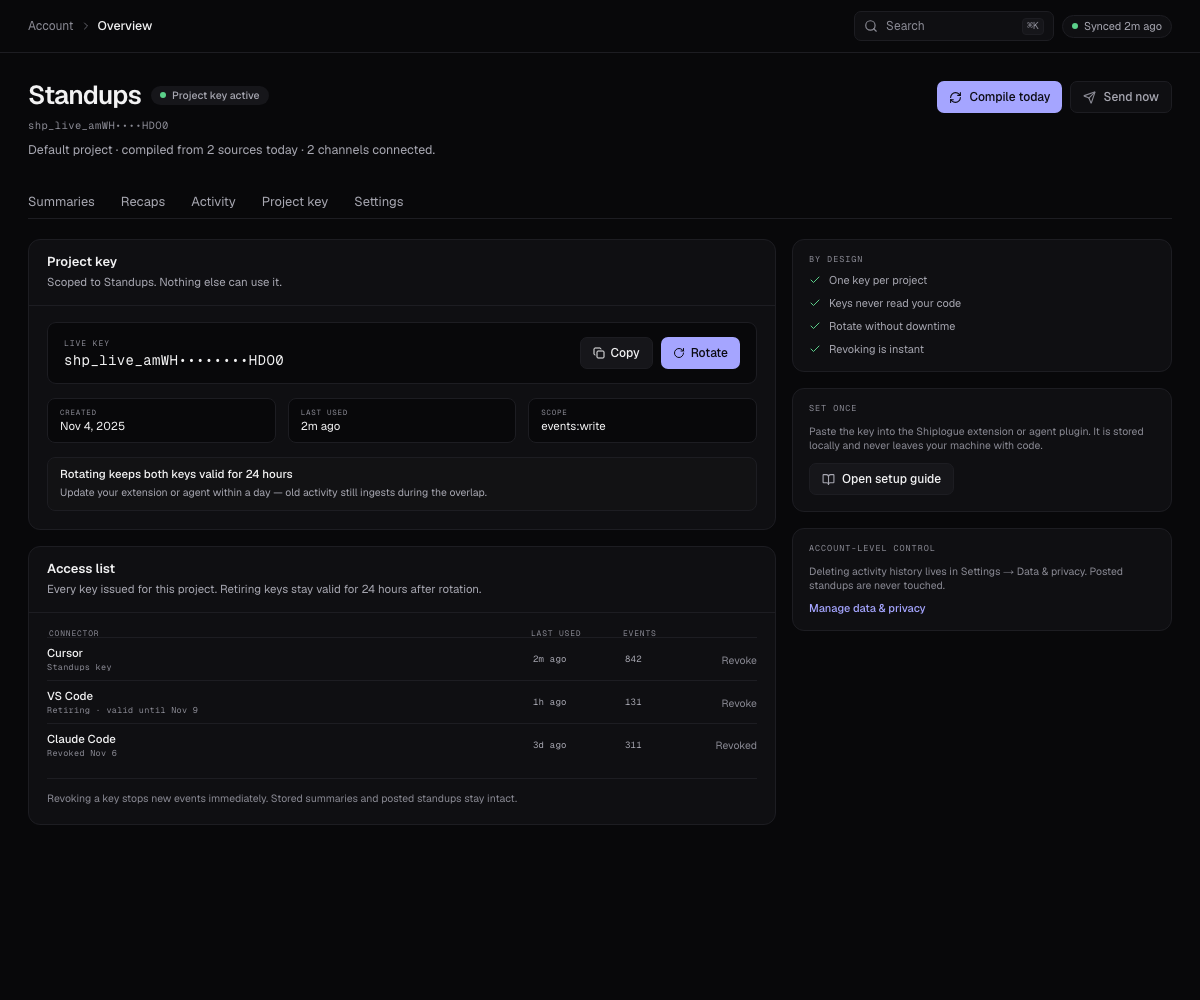
Connect a project key
Create a project, copy its key once, paste it into the extension. The key only carries activity into that project.
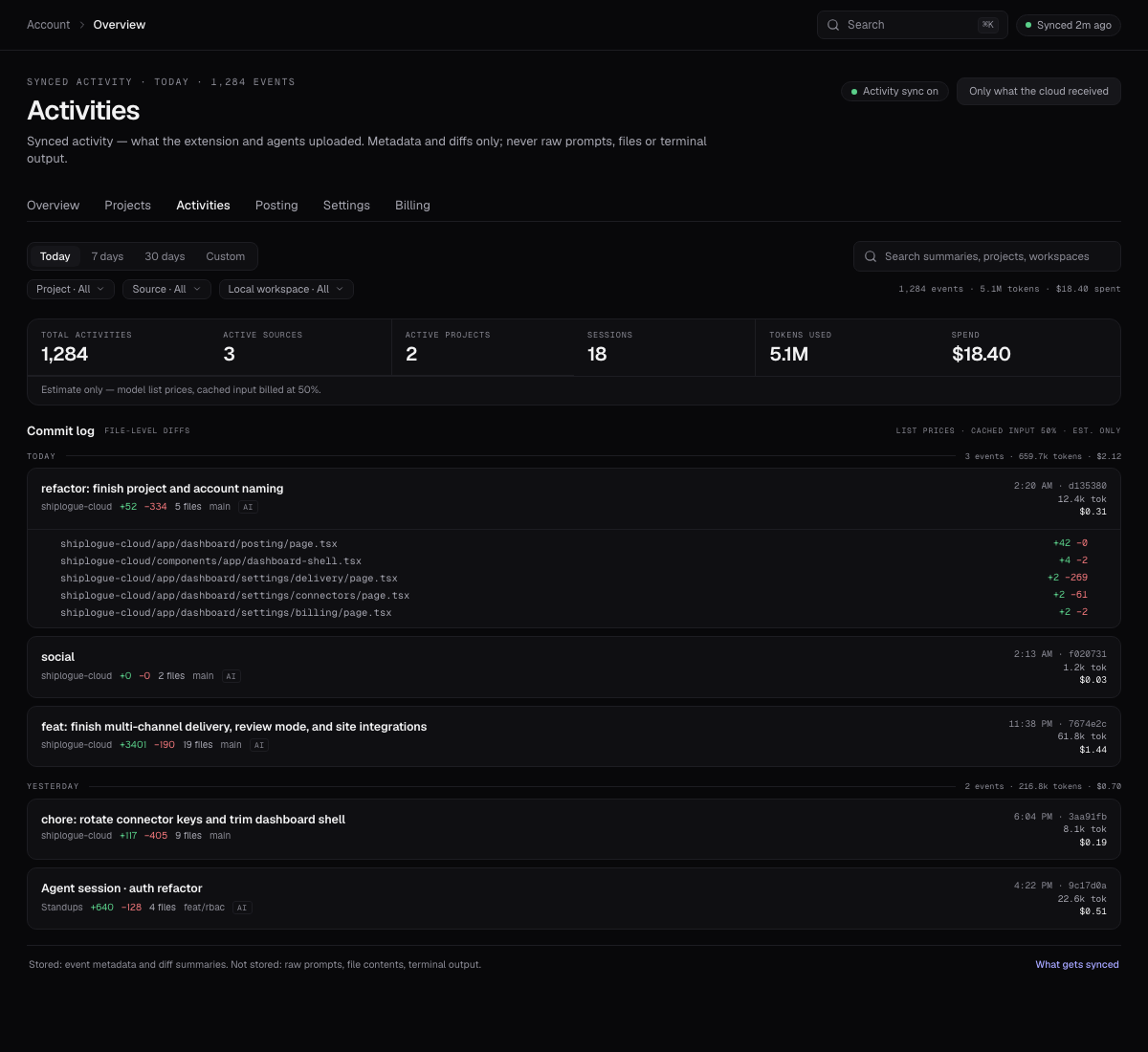
Work normally
Commits, agent sessions, reviews and pull requests report themselves. Activity sync runs locally and only metadata is sent.
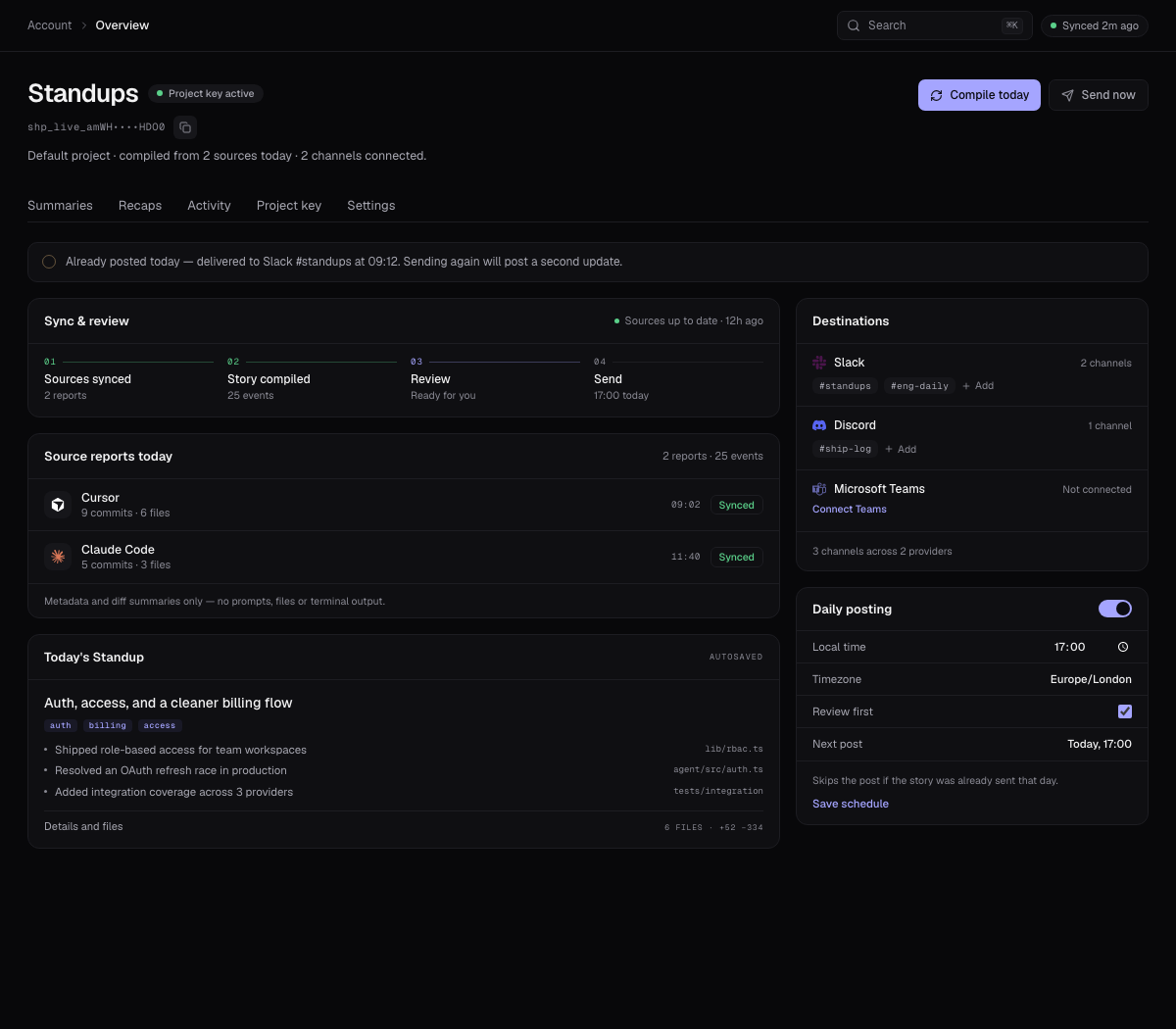
Sync and review the standup
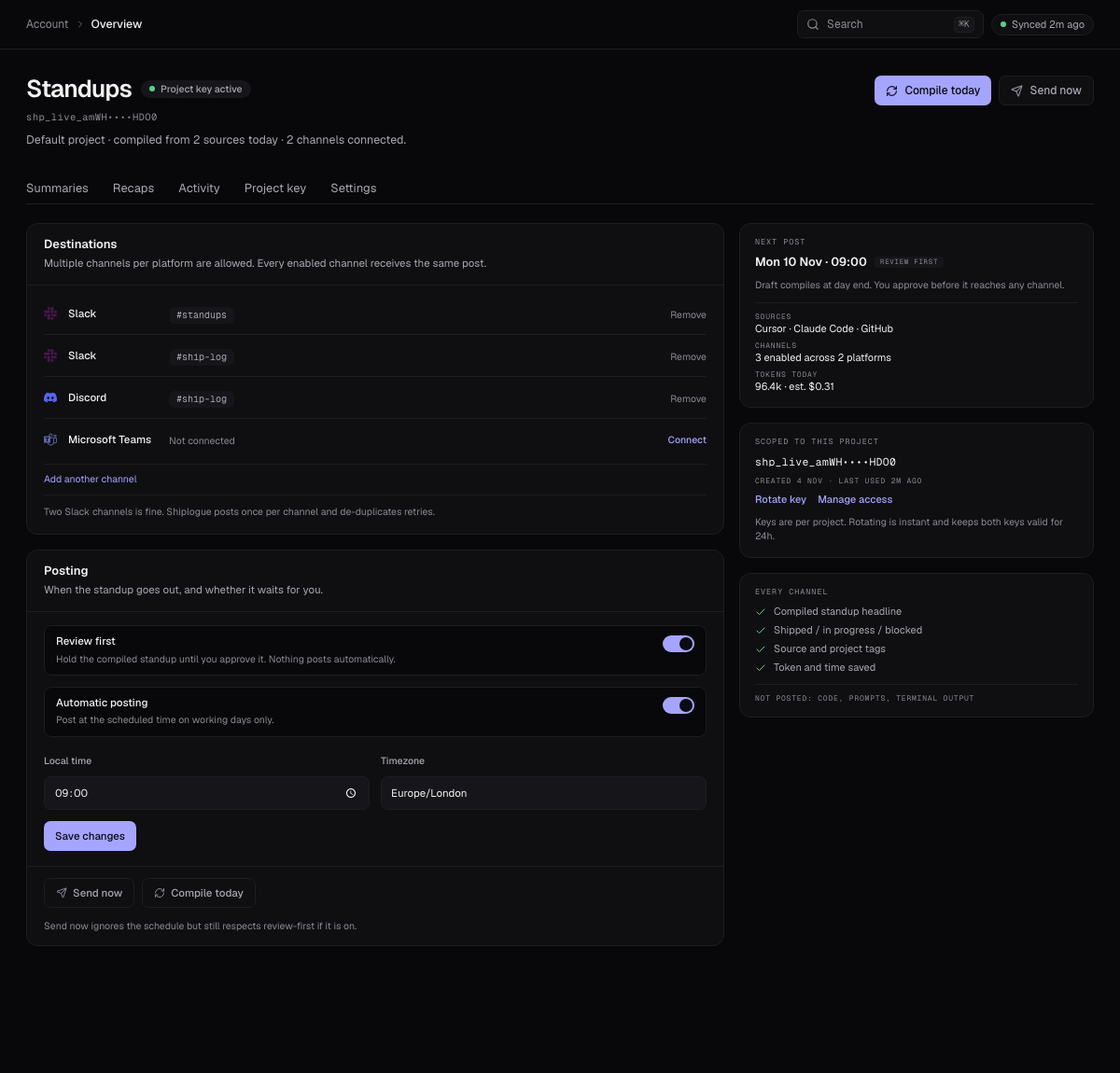
Shiplogue compiles the day into one story. Read it, edit a line, add context, or approve it as-is before anything leaves.
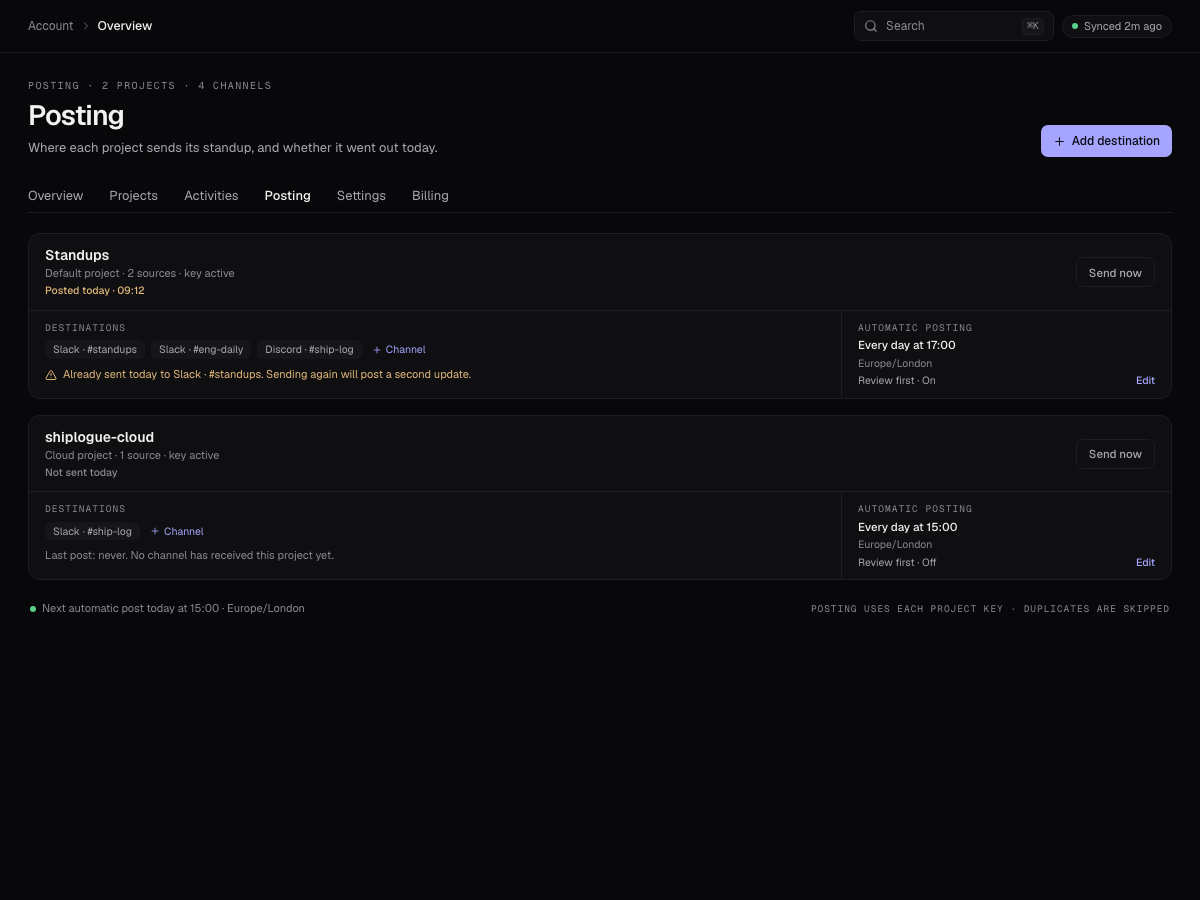
Send now, schedule, or copy and paste
Post it immediately, let the daily schedule handle it, or copy the formatted standup straight into Slack, Discord or Teams.
No channel connected yet?
Copy it and paste it anywhere.
Every compiled standup has a clean copy action — plain text, perfectly formatted for Slack, Discord or a DM.
Five steps is the whole setup.
Most teams connect a key and post their first standup the same day.